Support Tickets
View your organization's support tickets, create new tickets, and associate them with a specific PodWarden instance or mark them as general
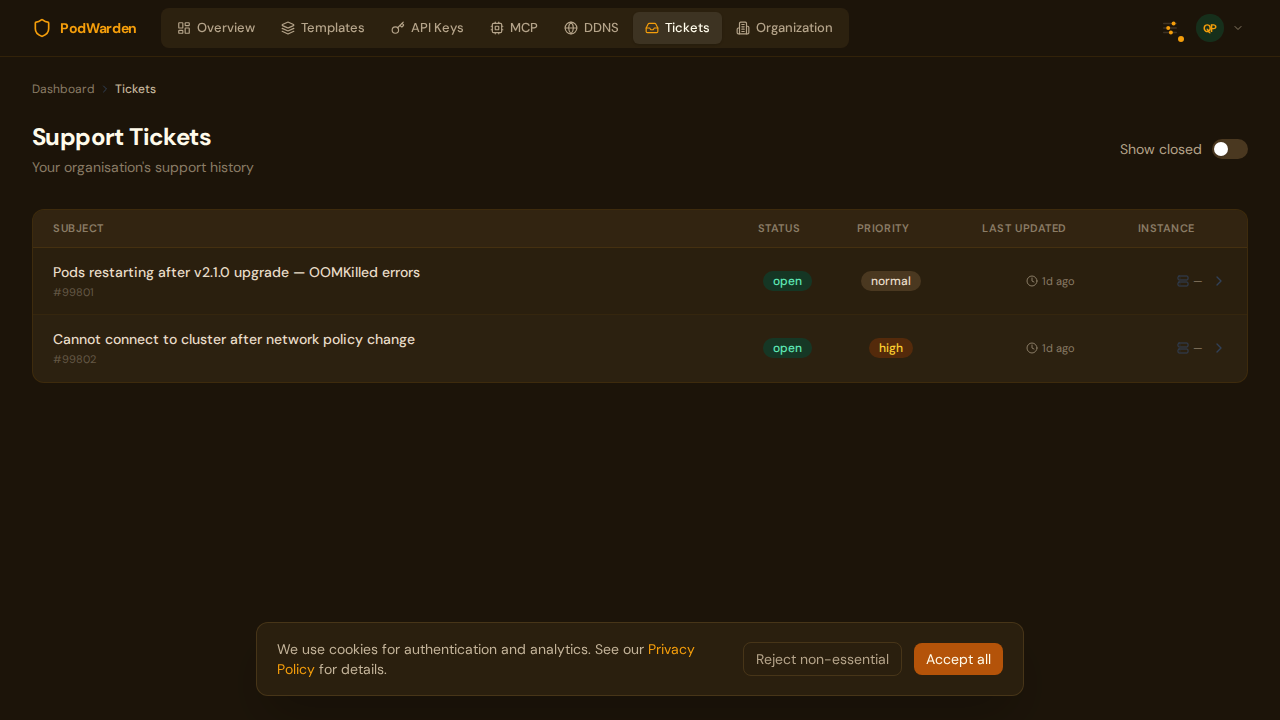
What you see
URL: /dashboard/tickets (requires login and organization membership)
The Support Tickets page lists every ticket your organization has filed with PodWarden support. Each row shows the ticket subject, current status, and when it was last updated. By default only open tickets are shown; a toggle at the top reveals closed tickets as well.
Creating a ticket
Click New ticket to open the create form. Fill in the following fields, then click Submit.
| Field | Description |
|---|---|
| Subject | A short summary of the issue or question (required) |
| Description | Full details — what happened, what you expected, and any steps that reproduce the problem (required) |
| Instance | Which PodWarden instance this ticket concerns (see Choosing an instance below) |
Choosing an instance
When you create a ticket, you can associate it with a specific PodWarden instance that belongs to your organization, or leave it as not instance-specific by choosing General.
When your organization has instances
If your organization has at least one PodWarden instance registered in Hub, the form shows an instance picker. You must make a selection before you can submit the ticket.
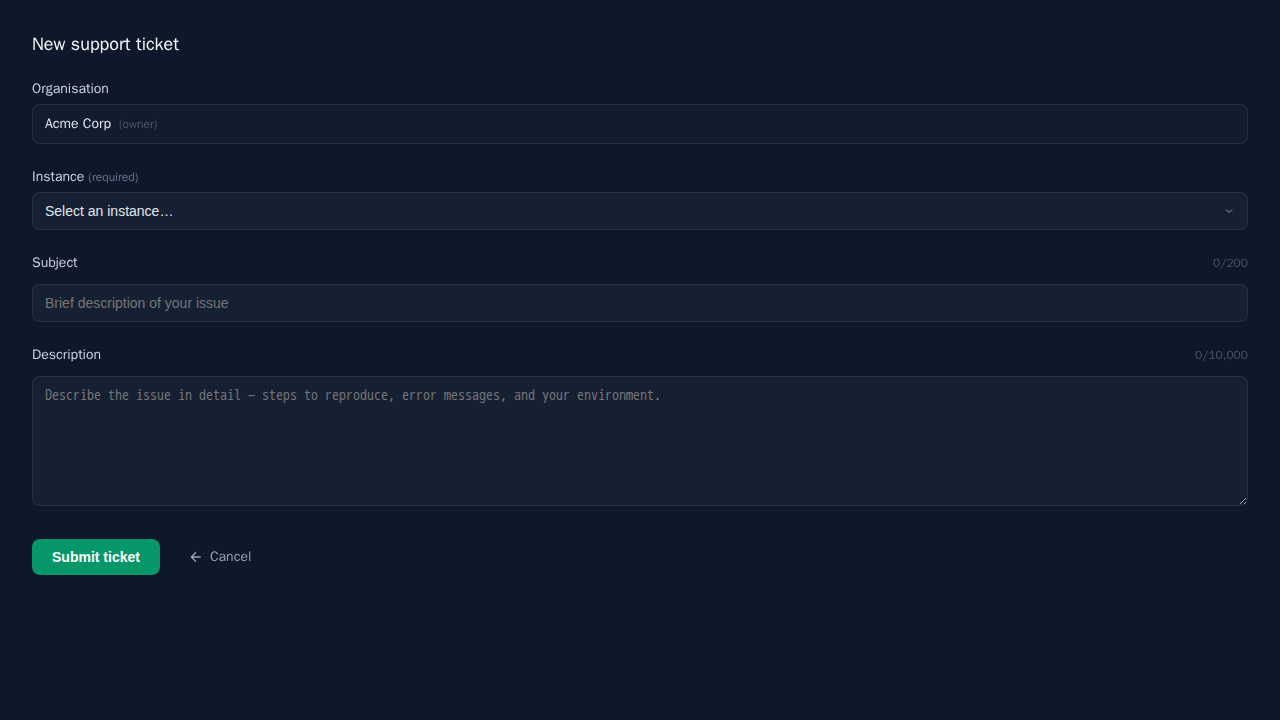
The dropdown lists every instance currently registered to your organization, plus a General / not instance-specific option at the bottom. Select the instance that the ticket is about, or select General if the question is not tied to a particular deployment.
When to pick a specific instance: choose an instance when the issue or question relates to one particular deployment — for example, a workload that is not starting, a configuration question about a specific cluster, or a backup schedule that is not running as expected. Associating the ticket with an instance lets support staff locate your deployment quickly and include relevant details in their response.
When to choose General: choose General for questions that are not tied to a single deployment — such as billing questions, feature requests, or questions about how PodWarden works in general.
When your organization has no instances
If your organization does not yet have any PodWarden instances registered in Hub, the instance picker is not shown at all. Your ticket is automatically filed as not instance-specific, and no action is required on your part.
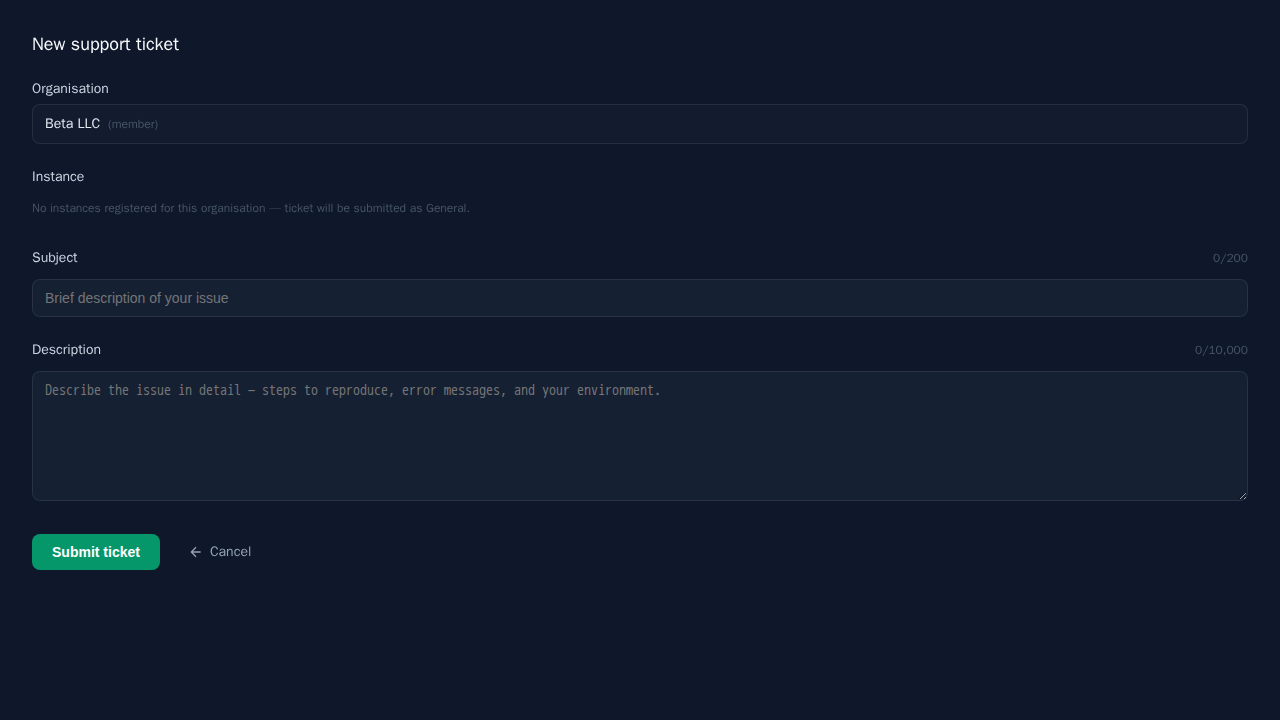
Once you register your first instance under API Keys, the picker will appear the next time you create a ticket.
Errors you may see
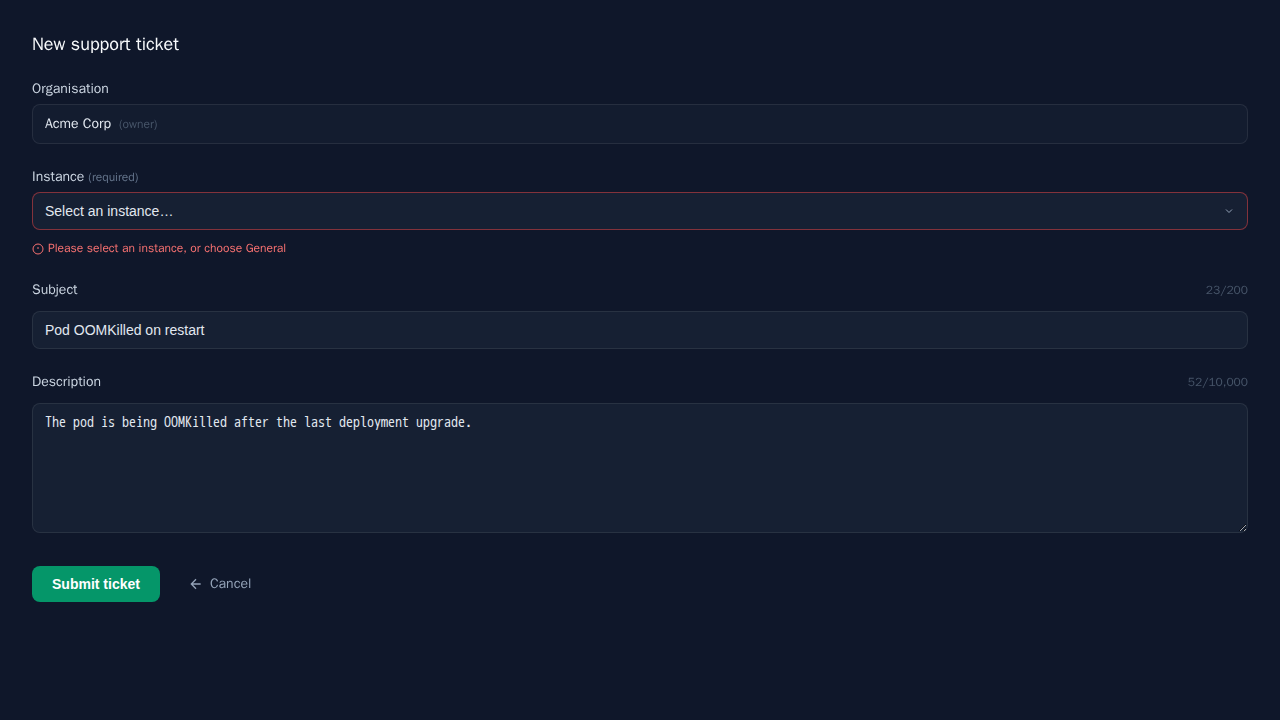
| Error | What it means | What to do |
|---|---|---|
| Instance not accessible | The selected instance is not currently associated with your organization, or it was removed. | Select a different instance from the dropdown, or choose General / not instance-specific. |
| Please select an instance or General | Your organization has at least one instance but no selection was made. | Open the dropdown and pick an instance or choose General / not instance-specific. |
| Subject is required | The Subject field is empty. | Enter a short description of the issue. |
| Description is required | The Description field is empty. | Describe the issue in the Description field. |
Ticket status
| Status | Meaning |
|---|---|
| Open | The ticket is active and awaiting a response or action |
| Awaiting your reply | Support has responded and is waiting for more information from you |
| Resolved | Support has marked the ticket resolved; you can reopen it if needed |
| Closed | The ticket is closed |